
Tools, Tips & Platform Limitations – Social Media for All
Tools, tips, and tricks to make your social media content for everyone.
Turn accessibility into action with tools, tips, and platform tricks that make every post more inclusive.
Topics
- Tools to Support Accessible Posting
- Workarounds for Inaccessible Features
Lesson Breakdown

Accessibility Features by Platform

Tools to Support Accessible Posting
Workarounds for Inaccessible Features

Templates & Style Guide Examples
Take a Guess
Social media is inconsistent about the accessibility features that they offer across different platforms.
Try one of these activities to take a guess about the types of social media platforms accessibility features and limitations
This activity is appropriate for learners needing movement and manipulation.
This activity is appropriate for learners using screen readers or needing traditional questions.
Accessibility features by platform
Not all social media platforms support accessibility the same way. Some offer great features like alt text and editable captions, while others leave big gaps. As a content creator, it helps to know what each platform can and can’t do—so you can work with it (or around it).
- ✅ Add alt text to feed posts (Edit > Advanced Settings)
- ✅ Edit auto-captions in Reels
- 🚫 Stories are not screen reader accessible
- 🚫 No support for adding alt text to Stories or Highlights
TikTok
- ✅ Auto-captions can be turned on (and now edited!)
- ✅ Option to add text overlays and spoken descriptions
- 🚫 No alt text for images or thumbnails
- 🚫 Visuals move fast, making it harder for some users to follow
- ✅ Add and edit alt text for images
- ✅ Auto-captions for videos can be edited
- ✅ Posts can include long descriptions
- 🚫 Story content still lacks support for screen readers
X (Twitter)
- ✅ Add alt text when uploading images
- ✅ Caption support for videos
- 🚫 Alt text often disappears when posts are retweeted
- 🚫 Third-party tools (like scheduling apps) don’t always keep accessibility data
- ✅ Add alt text to images
- ✅ Caption videos
- ✅ Supports longer posts with structure
- 🚫 No alt text on background images or certain profile elements

Tools to Support Accessible Posting
There are tons of free and easy tools that can help you create better, more accessible posts. These tools support writing, checking visuals, adding captions, and even previewing your content through an accessibility lens.
Writing and Language Tool
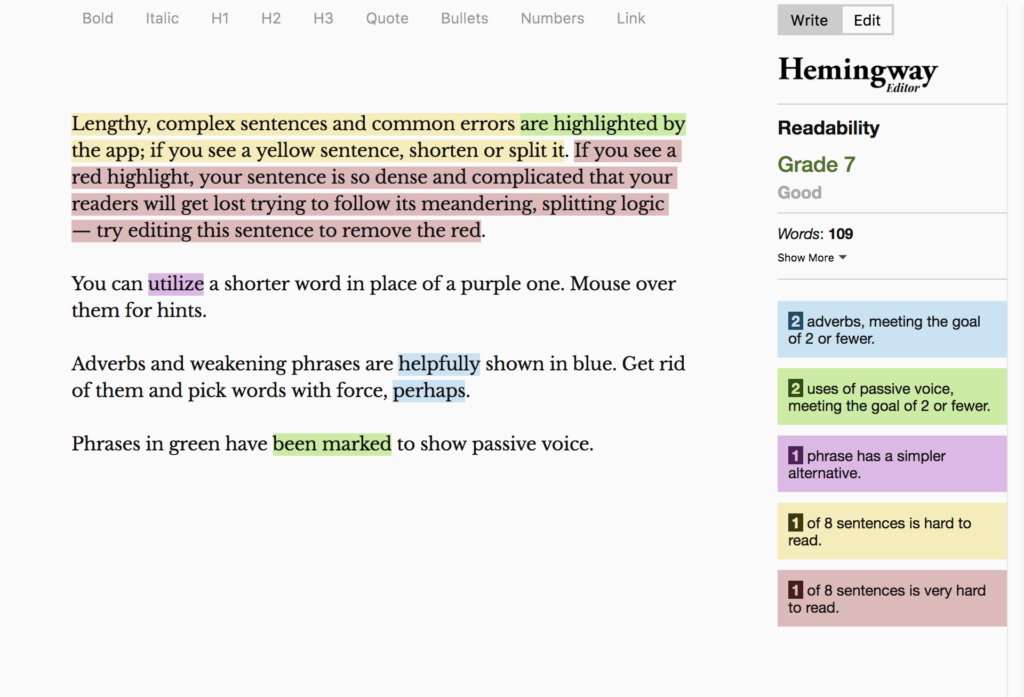
- Hemingway App – Highlights complex sentences and passive voice. Keeps text at a middle school reading level.
🔗 hemingwayapp.com - Grammarly – Helps with clarity, grammar, and tone. Includes accessibility-friendly suggestions.
🔗 Grammarly Website
Color and Contrast Checker
- WebAIM Contrast Checker – Tests contrast between text and background colors.
🔗 webaim.org/resources/contrastchecker - Accessible Colors – Suggests color combos that meet WCAG contrast ratios.
- ColorZilla (Chrome Extension) – Helps identify hex codes and test contrast on live websites.
Caption and Video Tools
- YouTube Studio – Great for editing auto-captions with a built-in editor.
- CapCut – Free mobile app with customizable captions for Instagram and TikTok videos.
- Clips (Apple) – Auto-generates captions while you record.
- AutoCap – Android app that adds automatic captions and lets you edit before sharing.
Imagen
- VoiceOver (iOS) or TalkBack (Android) – Use your phone’s screen reader to hear how your post reads.
- NVDA (Windows) – Free desktop screen reader for testing accessibility.
- WAVE Tool (Chrome Extension) – Tests accessibility of full web pages (great for testing embedded content).
Workarounds for Inaccessible features
When a platform doesn’t offer full accessibility support, creators can step in with creative solutions. These small adjustments can make content much more inclusive.
Instagram Stories can’t be read by screen readers
👉 Add a short description in your post caption.
👉 Turn your story content into a static image post with alt text.
TikTok thumbnails don’t support alt text
👉 Describe the video visually.
👉 Put the description in your caption or right at the start of the video.
Reposting on X removes alt text
👉 Add your own short image description.
👉Do this in the tweet text when you quote or retweet.
Auto-captions are full of errors
👉 Check the auto-captions.
👉 Use tools like CapCut or YouTube Studio to edit and correct captions before posting.
Template & Style Guide Examples
Having a personal or team style guide can help you stay consistent with accessibility. Templates are another great way to speed up your workflow while keeping your content inclusive.
Build Your Own Accessible Templates
Feed Posts
- Use a readable font like Arial, Open Sans, or Helvetica
- High-contrast background behind text (e.g., white on black or black on yellow)
- Keep captions short with line breaks
- Add alt text or include an image description in the post
Video Posts
- Add captions and edit them for clarity
- Start with a brief visual description (spoken or in text)
- Include a text overlay with key info in large, readable font
Stories or reels
- Don’t rely on visuals alone—narrate key points
- Add a captioned version of the video elsewhere (like a feed post or YouTube)
Style Guide Tips
- Always use CamelCase hashtags
- Keep emojis at the end, max 1–2 per post
- Use inclusive language (“you” instead of “users,” “person with vision loss” instead of “the blind”)
- Avoid acronyms unless they’re explained